Edit Users
Overview
Edit existing user accounts, update account details, and manage user status such as suspension or activation.
Permissions / Access
- Department Manager
- Company Manager
Navigation Path
Admin Dashboard -> Users -> Edit Users
Steps
- Open Admin Dashboard.
- Select the Users tab.
- Select Edit Users.
- Choose the user account you want to update.
- Use User Controls or open the account details to change information.
- Turn on Edit Mode in the upper right corner for additional options.
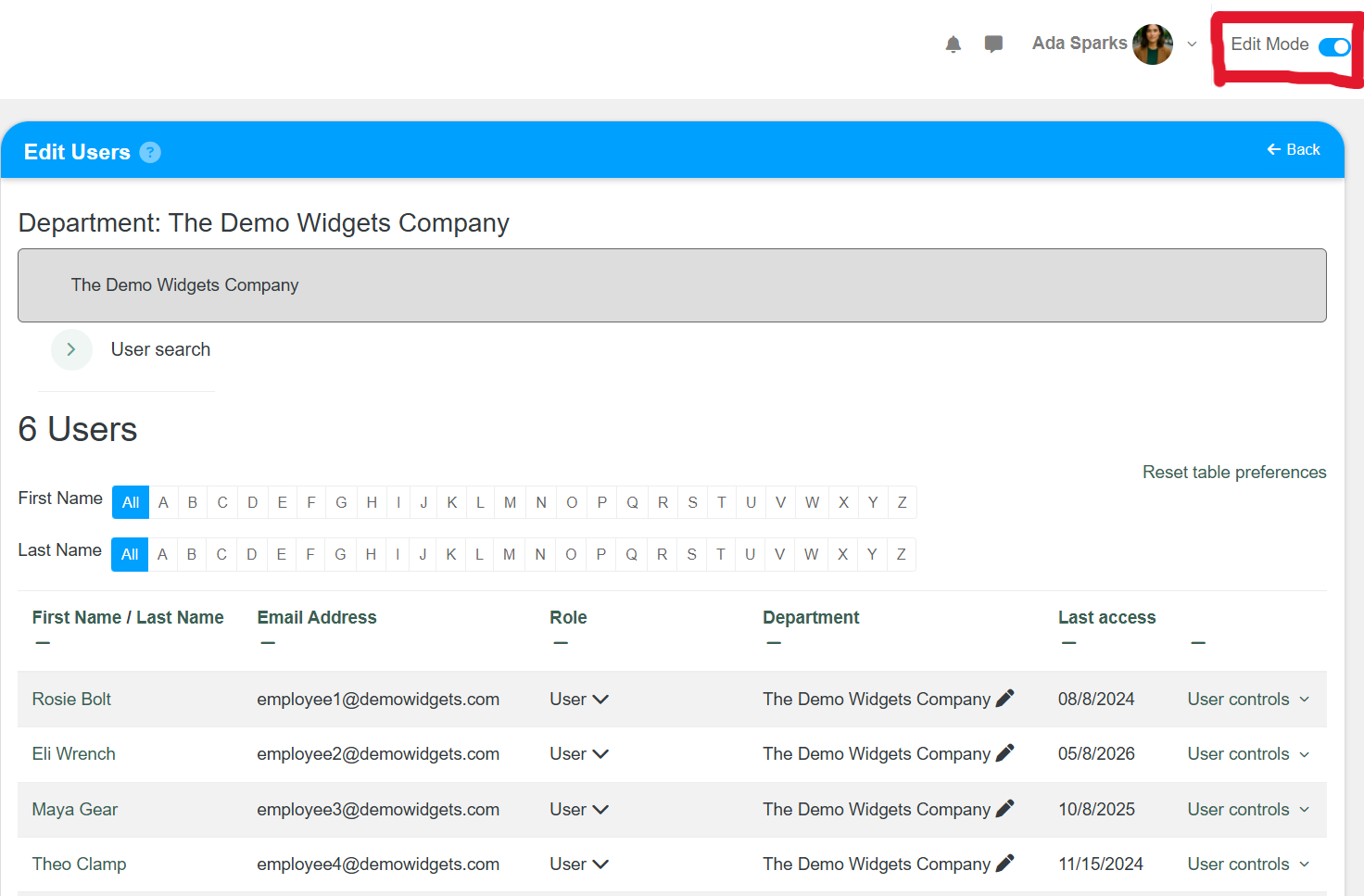
- Save your changes.
Result
- The selected user account is updated.
- User profile details and settings reflect the new values.
- Suspended users remain visible when appropriate filters are enabled.
Notes / Tips
- Use Edit Mode to access suspension and advanced account options.
- Suspending a user preserves their data and activity history.
- If you need to restore access later, unsuspend the user instead of recreating the account.
Troubleshooting
Common issue: You cannot edit a user.
Solution: Confirm you have Department Manager or Company Manager permissions.
Common issue: Suspended users are not visible.
Solution: Open User Search and check Show suspended users?, then apply filters.