Bulk Download Users
Overview
Export large sets of user account data at once from the platform so managers can review, audit, or share user information without downloading each account individually.
Permissions / Access
- Company Manager
- Department Manager
Navigation Path
Admin Dashboard -> Users -> User Bulk Download
Steps
- Open Admin Dashboard.
- Select the Users tab.
- Select User Bulk Download.
- Choose the download format you need.
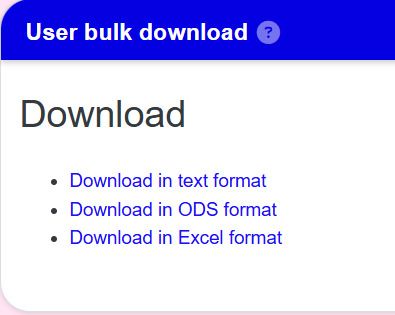
- Select Download to export the file.
Result
- A file containing the selected user data is downloaded.
- The exported data includes fields such as first name, last name, institution, department, phone number, city, and country.
- The download completes immediately after selecting the format and confirming the export.
Notes / Tips
- Only authorized administrators should use bulk download.
- Choose the format that matches your reporting or import needs.
- Avoid exporting sensitive user data unless it is necessary.
- Confirm the export file includes the expected users before sharing it.
Troubleshooting
Common issue: The file does not download.
Solution: Verify your browser's download settings and retry the export.
Common issue: The exported data is incomplete.
Solution: Confirm the correct download format and filters were selected.