Add A Lesson
Overview
Add a lesson activity to a training module so users can work through content in sequence. This page also explains how to link the lesson to the next activity or lesson at the end of the content.
Permissions / Access
- Company Manager
Navigation Path
Training Dashboard -> [Select Training Module] -> Edit Mode
Steps
Add a lesson
-
Click on the Training Dashboard on the left navigation menu.
-
Open the training module where you want to add the lesson.
-
Toggle on Edit Mode in the top-right corner.
-
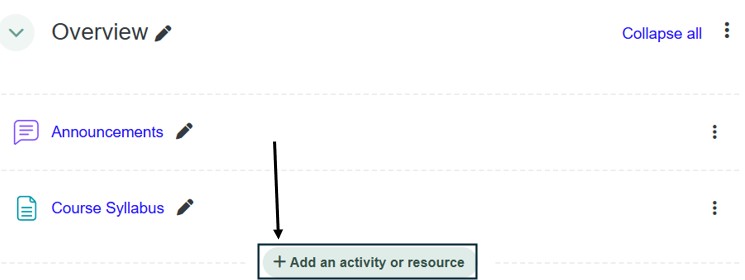
Click Add an activity or resource.
-
Select Lesson.
-
Enter the lesson name and any required settings.
-
Choose Save and return to Training Module or Save and display.
Link to next activity
-
Click on the Training Dashboard on the left navigation menu.
-
Open the training module.
-
Toggle on Edit Mode.
-
Locate the lesson you want to link.
-
Click the three dots to the right of the lesson.
-
Select Edit Settings.
-
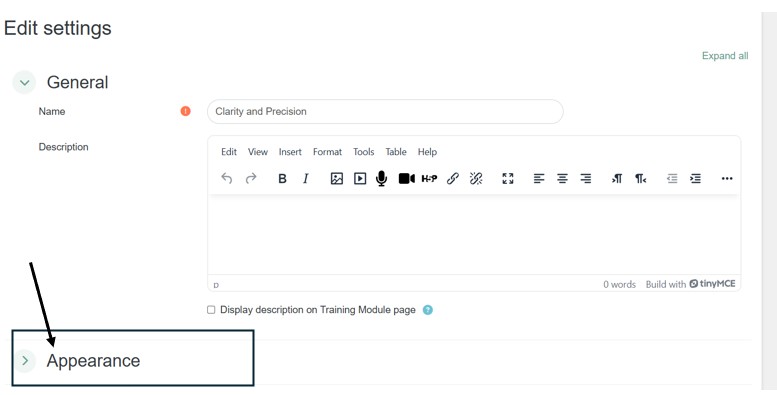
Scroll to Appearance.
-
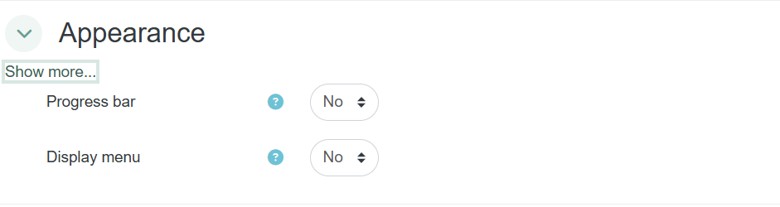
Click the Show more... button below Appearance.
-
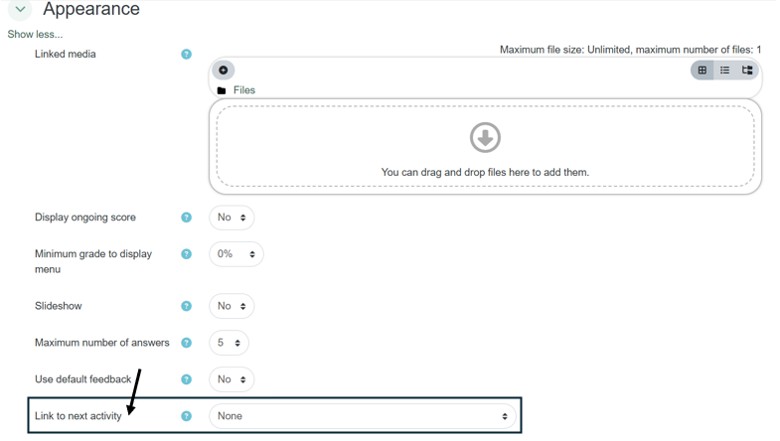
Scroll to Link to next activity.
-
Click on the drop-down list
-
Select the page or lesson that should follow this lesson.
-
Scroll to the bottom and choose Save and return to Training Module or Save and display.
Result
- The lesson is added to the training module.
- Users can move directly to the next activity or lesson after completing the current lesson.
Notes / Tips
- Use Save and display when you want to review the lesson immediately after adding it.
- Use Save and return to Training Module when you want to remain in the training module view.
- If the lesson navigation does not appear, confirm you are in Edit Mode and that the lesson settings are saved.
- For Link to next activity, you can only link to a next activity through a lesson.
Troubleshooting
Common issue: The Link to next activity option is not visible.
Solution: Follow the steps for Link to next activity.
Common issue: The wrong next activity appears at the end of a lesson.
Solution: Open Edit Settings for the lesson, scroll to appearance, click the blue show more button and select the correct page or lesson from the Link to next activity drop-down.