User Login Report
Overview
Use the User Login Report to review user sign-in activity and confirm when users last accessed the system.
This report is helpful when you need to monitor usage, verify access patterns, or identify users who may need support signing in.
Permissions / Access
Who can perform this action?
- Department Manager
- Company Manager
Navigation Path
Admin Dashboard -> Reports -> User Login Report
Steps
- Open Admin Dashboard.
- Select the Reports tab.
- Select User Login Report.
- Select any available filters, such as department or user search.
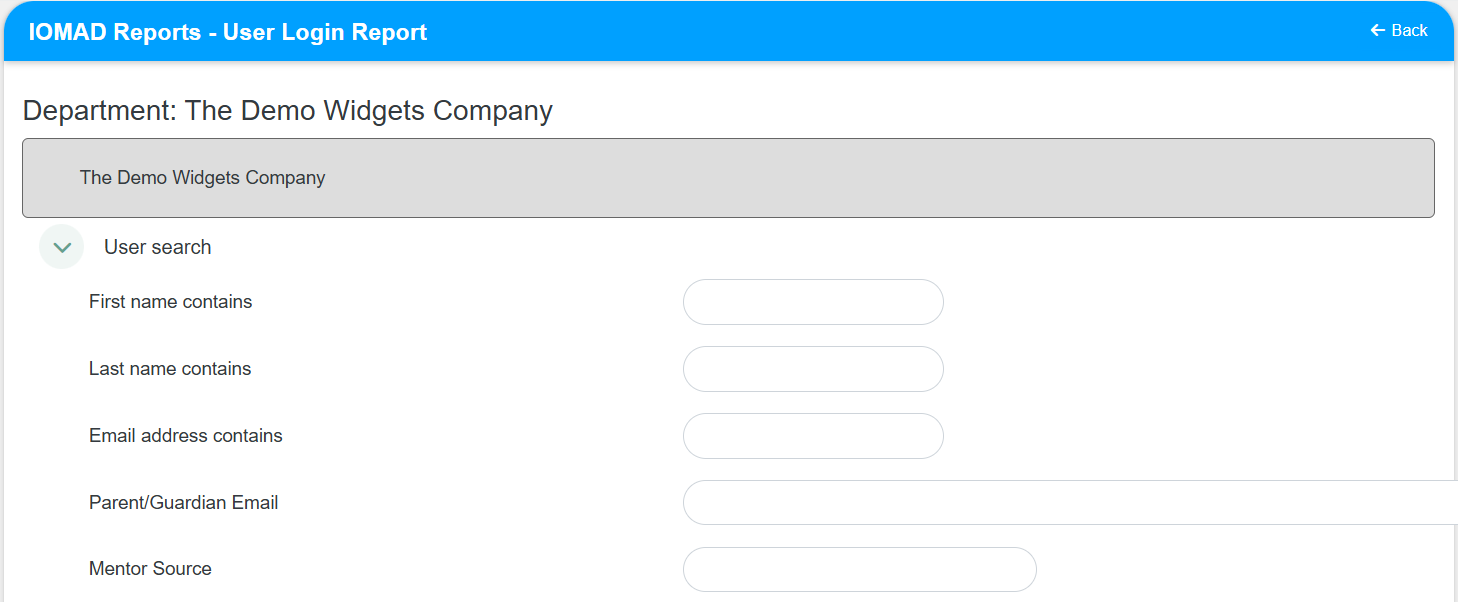
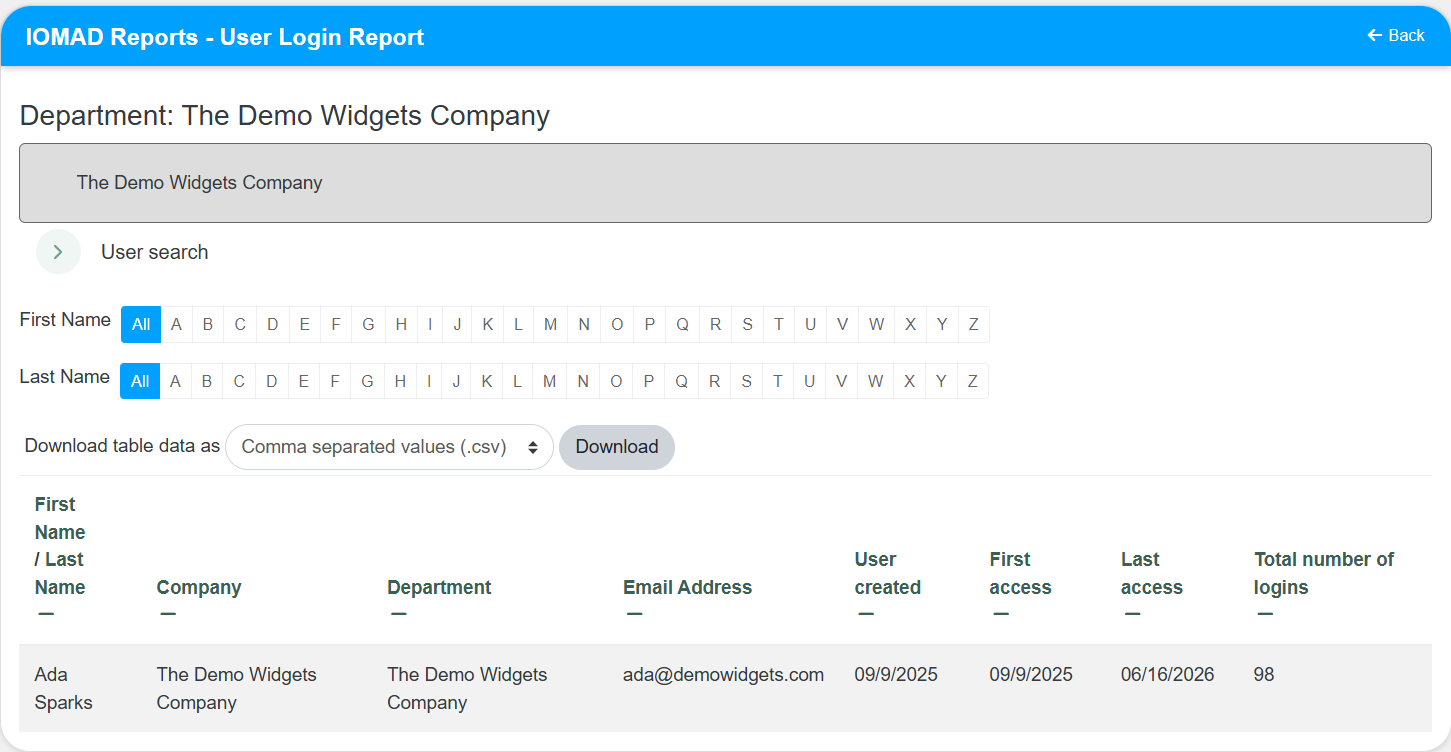
- Review the login activity details shown for the users in the report.
Result
- The User Login Report opens with the selected results.
- You can review login history and identify recent or missing sign-in activity.
Notes / Tips
- Use department filters to focus on a smaller group of users.
- Review the selected date range before comparing login activity.
Troubleshooting
Common issue: The report does not show the users you expected.
Solution: Check the selected department and date range, then run the report again.
Common issue: The results appear incomplete.
Solution: Confirm that the report finished loading and that no filters are excluding users.